How to Connect WhatsApp to Bitrix24

To connect WhatsApp to Bitrix24 you need a Bitrix24 account with admin rights, a WhatsApp number and the WASync app from the Bitrix24 Market. Setup takes about five minutes with a QR code, or about five minutes in Meta's sign-in window for the official WhatsApp Business API.
Before you start
- A Bitrix24 account with admin rights. WASync installs from the Bitrix24 Market, and only an administrator can install it and add connections.
- A WhatsApp number. Keep the phone that holds it at hand.
- A connection type. You can run both in one portal.
- WAPP (QR code), $19/month. For a number you already use in WhatsApp or the WhatsApp Business app. It links like WhatsApp Web, so the phone must stay active on WhatsApp.
- WABA (WhatsApp Business API), $29/month. For an official Meta number, with approved templates and no phone to keep online. You also need a Facebook account with access to your business.
Prices are per connection, in USD, plus tax where applicable. A new connection starts with a 7-day free trial, with no card required. If you cannot decide, read WhatsApp QR vs Business API.
Step 1: Install WASync from the Bitrix24 Market
- Sign in to Bitrix24 as an administrator.
- Open Market in the left menu and search for WASync.
- Click Install and accept the requested permissions.
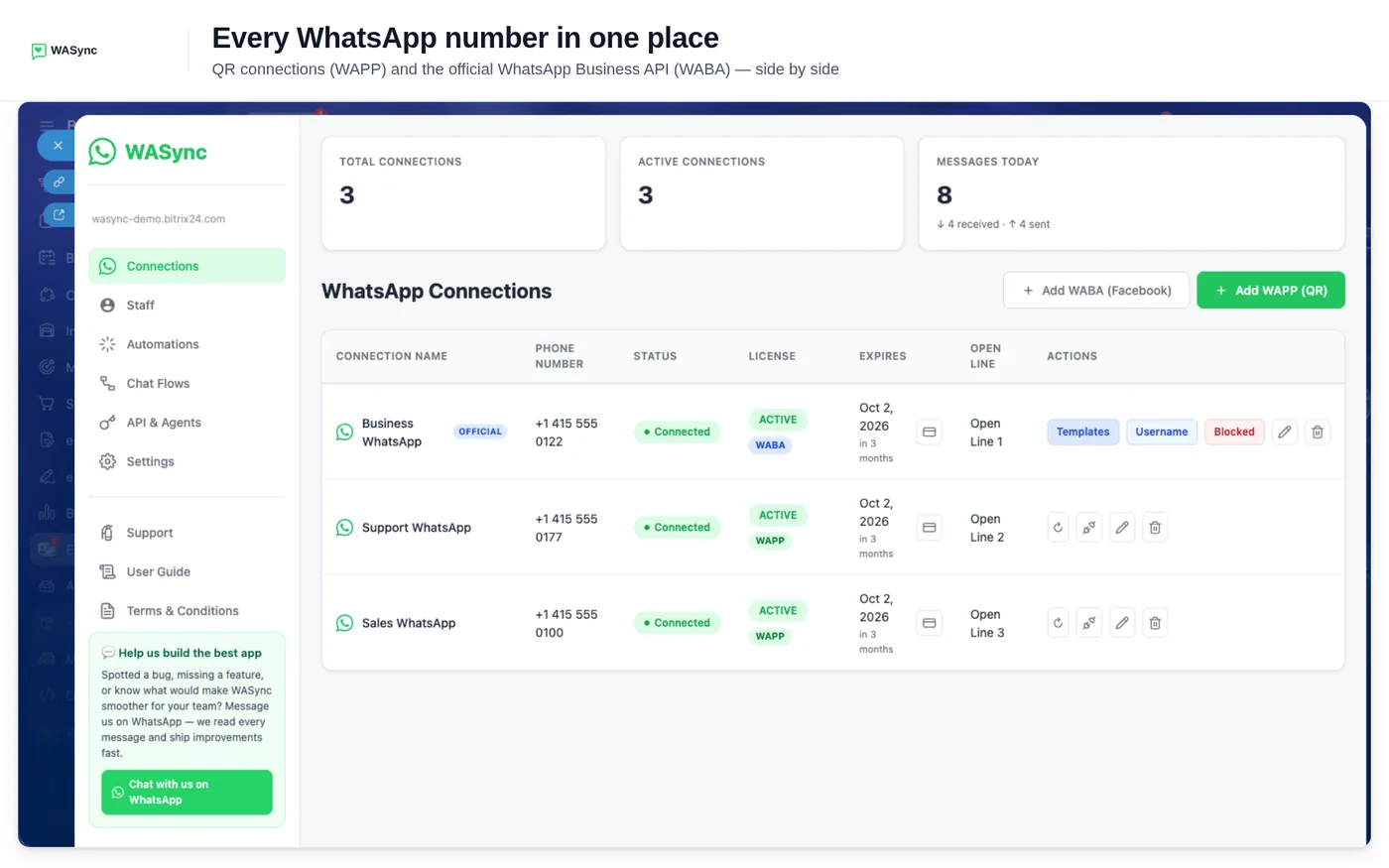
- Open WASync from the left menu. It opens on the Connections page.
Step 2 (QR route): Link an existing number with a QR code
- On the Connections page, click Add WAPP.
- Type a name for the connection, for example "Sales WhatsApp".
- Pick the Bitrix24 Open Line (Open Channel) that will receive the chats, or create a new one in the same list.
- Click Next. A QR code appears.
- On the phone, open WhatsApp → Settings → Linked Devices → Link a Device.
- Scan the QR code. The status changes to Connected.
Step 2 (API route): Connect an official number through Meta
- On the Connections page, click Add WABA.
- Check the list in the window. You need a business phone number that can receive Meta's verification code by SMS or voice call.
- Click Connect with Facebook.
- In Meta's window, choose or create your WhatsApp Business account and add the number.
- When Meta's window finishes, close it. The connection appears in the list, and WASync creates and binds an Open Line for it.
The same window explains what to do if the number is in use in the WhatsApp or WhatsApp Business app.
Step 3: Choose where messages go
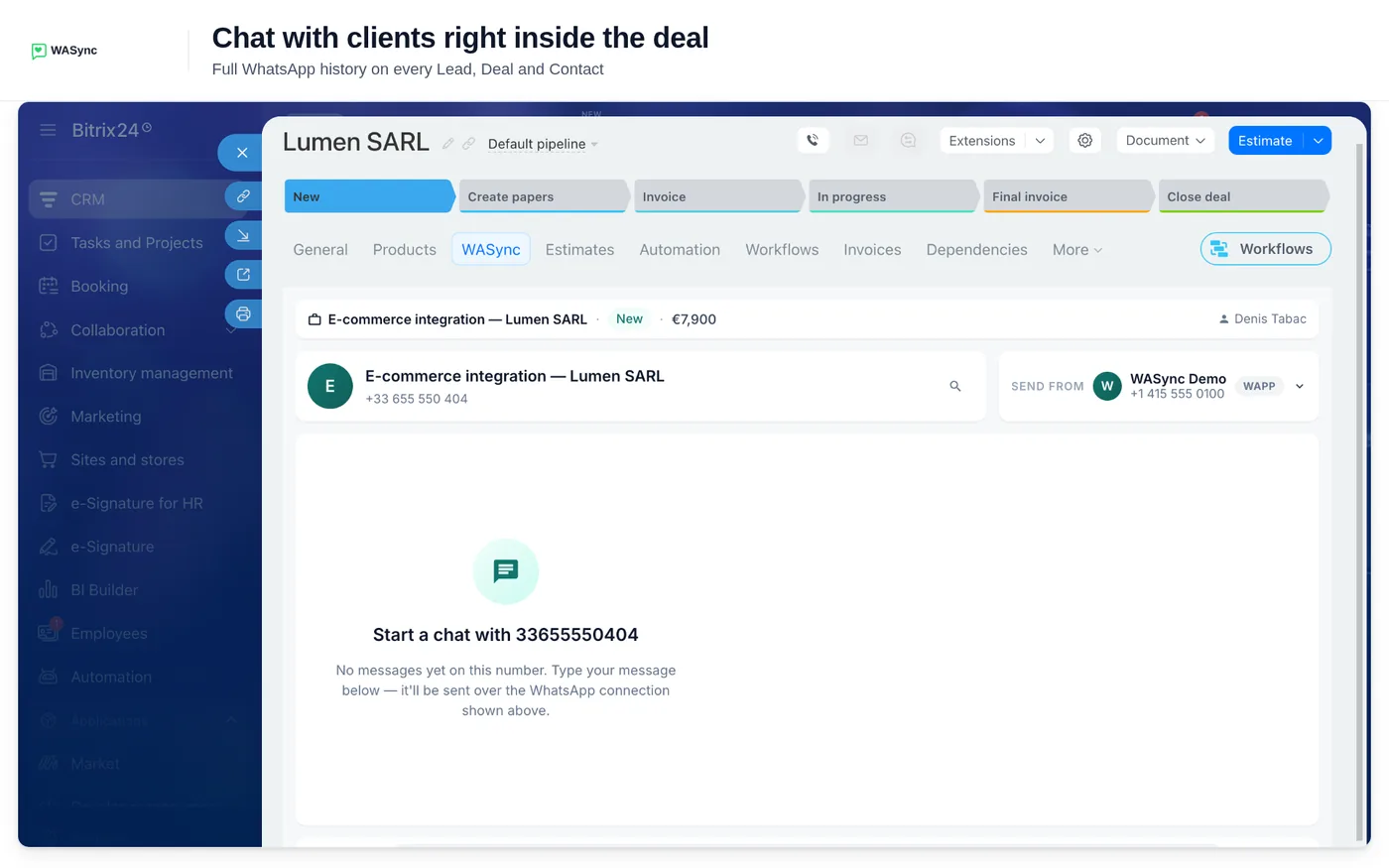
- The CRM chat. Open a lead, deal, contact or company and click the WASync tab. It shows the WhatsApp conversation with that record's phone number. It needs no setup.
- An Open Channel. Every connection is bound to an Open Line, so incoming chats also reach the Bitrix24 Contact Center. To change the line, edit the connection. Queue, working hours and automatic replies are set in the Open Line itself, in Bitrix24.
- Access. On the Staff page, choose which employees can use each number.
Step 4: Test it
- From another phone, send a WhatsApp message to the connected number.
- In Bitrix24, check that the chat arrives in the Open Line.
- Open a lead, deal or contact that has the sender's phone number and click the WASync tab. The message is there.
- Reply from the tab. The reply arrives on the other phone.
Troubleshooting
- The message is in the WASync tab but not in the Open Line. Check the Open Line column on the Connections page. The line must still exist in the Contact Center and have the connector enabled. The full checklist is in WhatsApp messages not showing in Open Lines.
- A QR connection shows Disconnected. WhatsApp signs linked devices out after long inactivity on the phone, or when someone removes the device. Click Reconnect and scan the new QR code. History and licence stay on the connection.
- Messages stop going out but the status is Connected. Use Restart on the connection. It interrupts the session for about 20 seconds.
- An API message fails after a day of silence. Free-form replies work only within 24 hours of the customer's last message. After that, send an approved template. See sending a template from a workflow.
- One customer went quiet on an API number. A blocked contact produces no incoming message and no error. Check the Blocked users list of that number. Details are in the blocking rules.
- The second status says Not ready. Click it. It lists four checks (session, licence, your permission, Open Line) with a link to fix each one.
Limits to know
- QR numbers are for one-to-one conversations. They are not for mass sending. WhatsApp can restrict a number that sends unsolicited messages.
- The phone matters on QR. The number must stay active on WhatsApp, and one number can have only one active connection.
- Templates on the API. Outside the 24-hour window you can send only templates approved by Meta. Meta bills its message fees separately. See what the WhatsApp Business API costs.
- Calls. They work only on API numbers. Incoming calls are free. Outgoing calls are billed by Meta.
- Files. The limit is about 16 MB per file.
- Support. It is in writing only, at [email protected].
How this compares with Bitrix24's built-in options
Bitrix24 has its own WhatsApp channels in the Contact Center. The Bitrix24 Helpdesk describes a connection through a Twilio account, available on commercial plans, where you must reply within 24 hours. It also lists Edna.io WhatsApp, which needs an edna Pulse account, and Instant WhatsApp, a channel for the website widget. All three deliver chats to an Open Channel. WASync adds two things to that: it links a number you already use by QR code, and it puts the chat in a tab on the lead and the deal.
FAQ
How do you connect WhatsApp to Bitrix24 with a QR code?
In WASync, click Add WAPP, name the connection and pick an Open Line. Then open WhatsApp → Settings → Linked Devices → Link a Device on the phone and scan the code. The status changes to Connected.
What is the official WhatsApp Business API for Bitrix24?
It is Meta's own platform for business messaging. A number on it sends Meta-approved templates, can write to a customer first and does not depend on a phone. In WASync you connect it by signing in with Facebook.
Should I use QR or the WhatsApp Business API?
Use QR to answer customers from the number you already have. Use the API if you need templates, messages that start a conversation, or calls. Both types can run in the same portal.
Is connecting WhatsApp to Bitrix24 safe — can my number get banned?
The QR route uses WhatsApp's own Linked Devices feature, the same one as WhatsApp Web. WhatsApp can still restrict any number that sends unsolicited messages. The Business API is Meta's official route for business messaging.
What can you do once WhatsApp is connected to Bitrix24?
Your team reads and answers WhatsApp chats on the lead, deal, contact and company, and in Open Lines. They send files and voice notes. Automation rules are included on both plans, and so are AI replies written from CRM data, with your own AI provider key.
How much does it cost to connect WhatsApp to Bitrix24?
WAPP (QR) is $19/month and WABA (WhatsApp Business API) is $29/month, per connection, plus tax where applicable. The API add-on for developers is $12/month. A new connection starts with a 7-day free trial.
Ready to get started with WASync?
Connect WhatsApp Business to Bitrix24 in minutes. Start your 7-day free trial today.